One phone on board.
From FAT and equipment receiving to patrol inspection, MC and commissioning, every status and remark lives in one system, closed-loop around the equipment tag.
Paperless on site: scan, tap or type the tag, see the equipment's live status, and log remarks with photos where you stand.
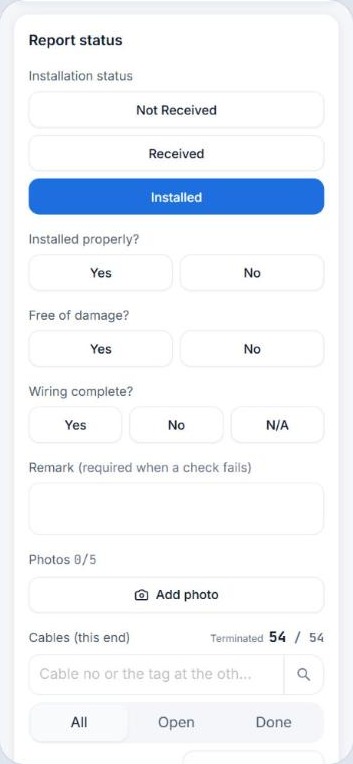
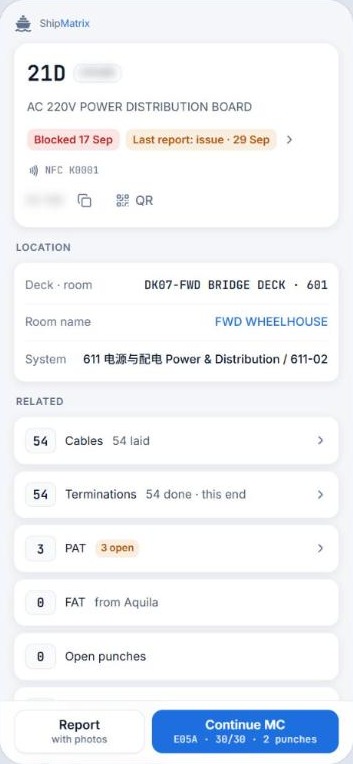
Real product screens · identifiers redacted
Site time goes on paperwork, not on quality and progress
Paper, chat groups and spreadsheets
- Checklists printed, filled in by hand, then re-typed into Excel back in the office
- Every party keeps its own spreadsheet version, reconciled every week
- Patrol remarks and photos scattered across chat groups, email and personal phones
- At the equipment, its drawings, certificates, FAT results and open remarks are out of reach
One phone, one record
- Scan the QR label, tap the NFC tag or type the tag number to open the equipment
- Patrol and MC remarks logged on the spot, with photos, straight into the system
- Drawings, inspection results and photos all linked to the tag (certificates coming soon)
- Failed MC check items become Punch items, tracked to closure with the rest
Linked upstream to engineering and procurement. Covering every field step downstream.
Engineering drawing status
Coming soonProcurement status
Coming soon- 01FATFactory acceptance
- 02ReceivingEquipment receiving inspection
- 03PatrolOn-site patrol inspection
- 04MCMechanical completion inspection
- 05CommissioningProgress by system
- 06DeliveryHandover
Everything the inspector needs, in one pocket
No clipboard and no re-typing. What is entered on site is the record.
- 01
Find it
Scan the QR label, tap the NFC card or type the tag number. All three open the same equipment page.
 02
See its live status
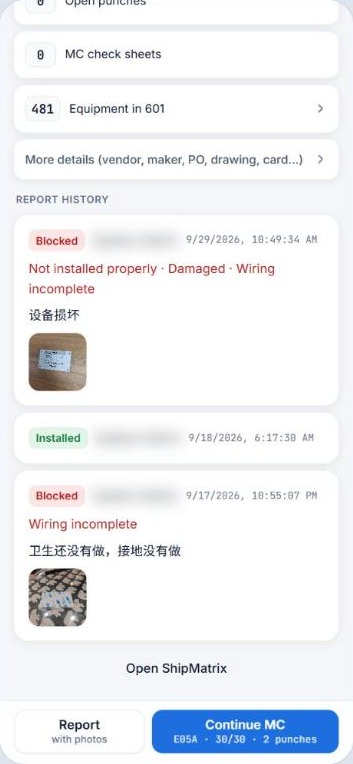
Location and system, cable pulling and terminations, FAT / PAT / Punch / MC results, and every past report with photos.
- 03
Report on the spot
Pick the receiving or installation status, answer the yes/no checks (a remark is required when one fails) and add up to 5 photos.
 04
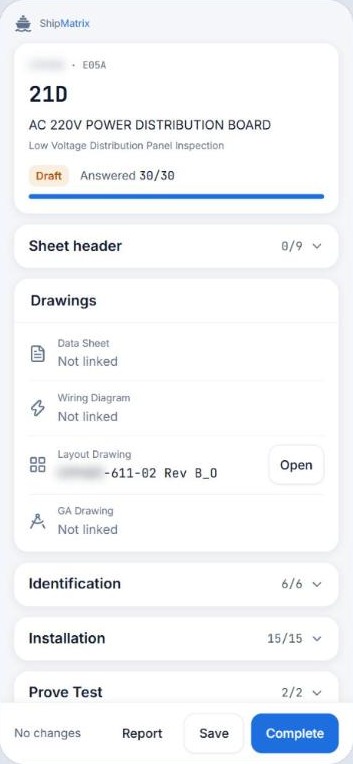
Finish the MC check sheet
Standard items for the equipment type, linked drawing numbers, photo evidence and auto-save. Failed items become Punch items.
 05
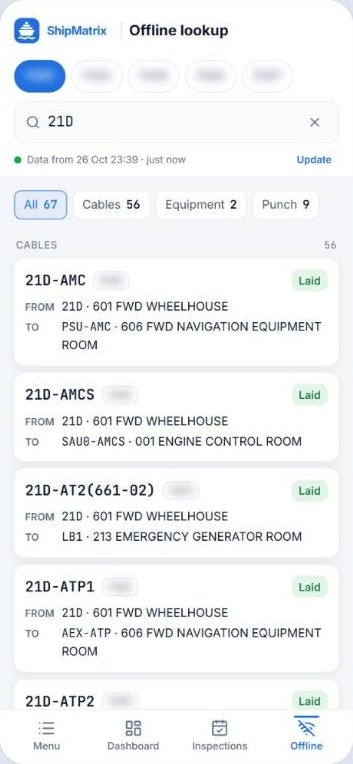
Search without signal
Cable, equipment, punch and inspection lists on the phone. Remarks logged offline upload when signal returns.
Real product screens · identifiers redacted
The closed loop on the tag
Drawings, inspection results, photos, remarks and cables all link to the same tag, with certificates coming soon. Find the equipment and you have its whole story.
- Drawings
- CertificatesComing soon
- FAT / MC results
- Site photos
- Patrol remarks
- Cables & terminations
Every field entry adds up to one picture of the fleet
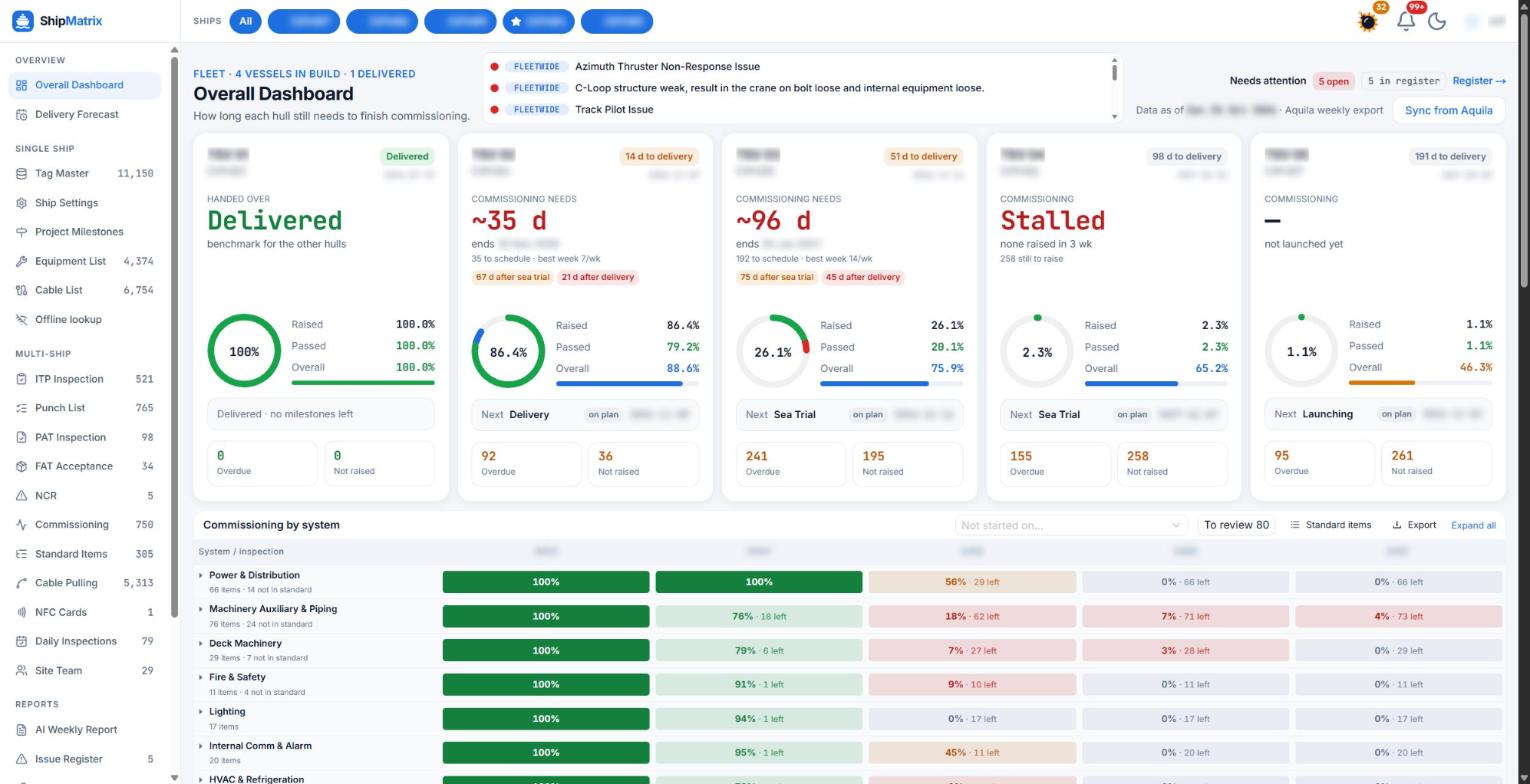
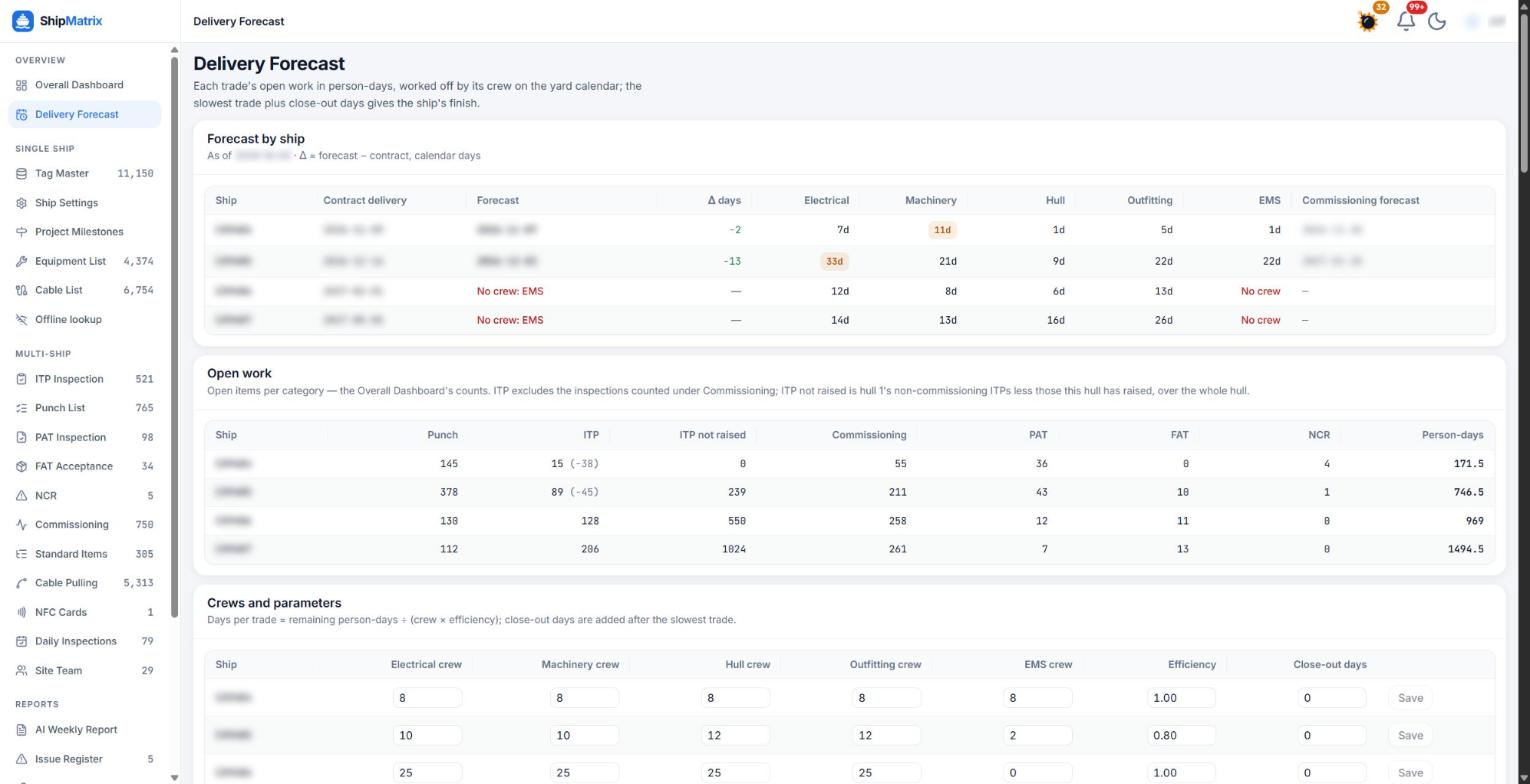
How long each hull still needs to finish commissioning, which system is behind, and which trade sets the delivery date.
How the yard sees it
Yard leads sign in to ShipMatrix: new remarks appear on the equipment page and in the registers, and the bell in the top-right shows how many of their items are overdue.
Real product screens · hull numbers and dates redacted
One system for every step on site
Inspection data can sync daily from existing systems such as Aquila, so nothing is typed in twice.
FAT
Factory acceptance
Receiving & installation
Arrival and install status per equipment
ITP inspections
Inspection and test plan
Daily inspection board
Today's plan, assigned to inspectors
Punch list
Tracked to closure
PAT · NCR
Patrolling and non-conformance
MC check sheet
Mechanical completion, on the phone
Commissioning
Progress by system
Cable pulling
Pulling and termination
QR / NFC cards
Equipment cards on site
Delivery forecast
Finish date by trade
AI weekly report
A draft from the platform's figures
Built for
Shipowners · Site supervisors
Board with one phone: open any equipment by QR, NFC or tag number, log patrol and MC remarks with photos on the spot, and keep searching deep in the hull without signal.
Shipyards · Production and quality leads
Sign in to see new remarks, with photos and the tag attached, on the equipment page and in the registers; the bell shows how many of your items are overdue. Failed MC items become Punch items tracked to closure, and the daily inspection plan is grouped by hull and discipline.
Frequently asked
What does an inspector need on board?
A phone with a web browser. Scanning the QR label or typing the tag number works on any phone; tapping an NFC tag needs a phone with NFC.
What if there is no signal in the hull?
Download the lists before going aboard: cables, equipment, punch and inspection lists for the whole fleet. Search them offline by tag, cable number or room. Remarks logged offline upload automatically when signal returns.
How does the yard find out about new remarks?
Yard leads sign in to ShipMatrix: new remarks appear on the equipment page and in the registers, and the bell in the top-right shows how many of their items are overdue.
Do we have to re-enter data from our existing systems?
No. Inspection data can sync daily from existing systems such as Aquila, and the yard's daily inspection plan can be imported.
Does it cover drawing and procurement status?
Both are coming soon: engineering drawing status and procurement status will link upstream to the same tags. Today ShipMatrix covers the field flow from FAT through receiving, patrol, MC and commissioning.
What does the AI weekly report do?
It drafts the weekly progress report from the figures already in ShipMatrix, using an AI model from Anthropic. AI output can be incomplete or wrong, so your team reviews and edits the draft before it goes out.
Where is the data hosted?
The platform, its database and uploaded files run on a server at Oracle Cloud Infrastructure, with traffic carried through Cloudflare. The Privacy Policy has the details.
Book a walkthrough on your own project
We will show the flow on your own hulls and equipment, from the phone on board to the dashboard in the office.